Connect
Choose where the conversation lives
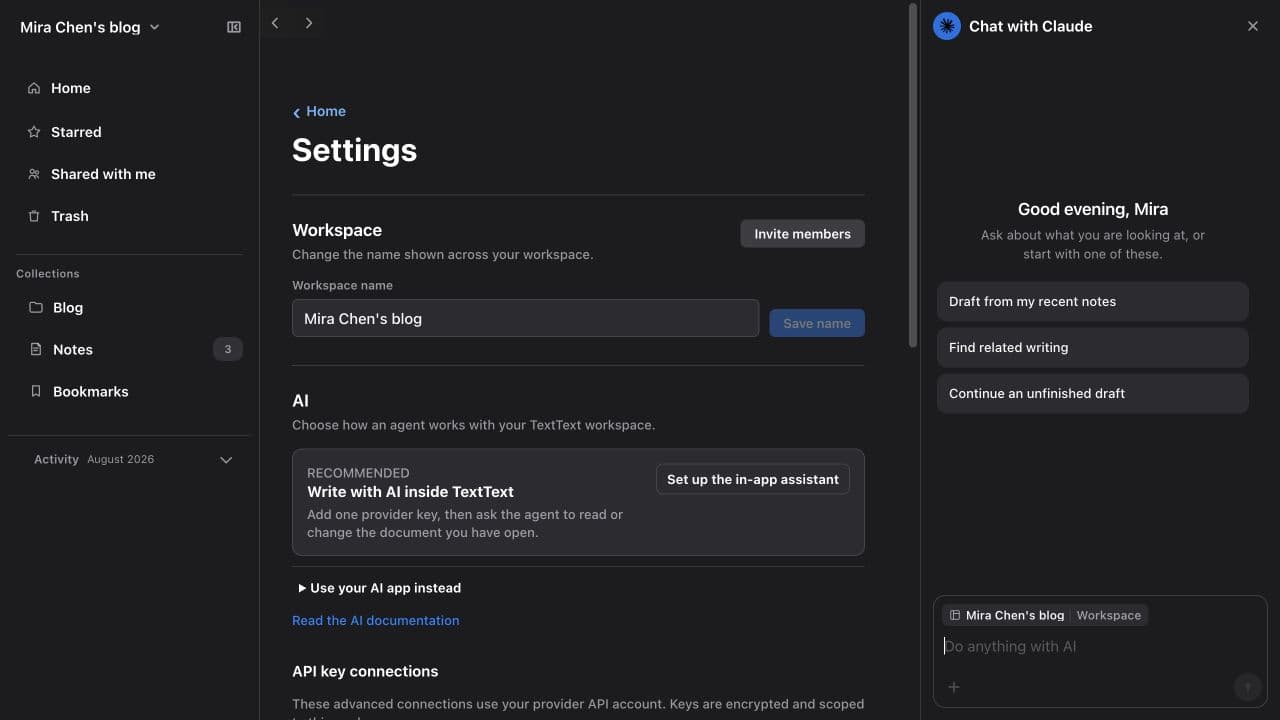
The document always lives in TextText. Choose whether the conversation lives beside it in the TextText sidebar or in the AI app you already use.
Inside TextText, recommended
Open Workspace Settings, choose AI, and set up the in-app assistant. Return to a document and open the right sidebar. The context chip names exactly what the agent will read or change.
Provider API usage is billed separately. The standalone Mac edition may also offer Continue with ChatGPT when an eligible local Codex account is available. App Store and browser builds do not launch software from your home directory, so they use the API-key or external-app paths.
With a configured provider, the assistant accepts bounded text, Markdown, CSV, JSON, YAML, XML, HTML, PDF, Word, Excel, PowerPoint, and image attachments over HTTPS. Office files are reduced to useful text, tables, cells, formulas, slides, and notes before the turn. PDF and image files stay as provider file parts. Unsupported or unsafe archives fail with a recovery message.
Model selection starts on Auto. TextText uses the provider's faster model for a short answer and its stronger model for files, workspace work, editing, and synthesis. Choose an exact model in the assistant header whenever you need a reproducible turn. The completed answer names the model that actually ran.
Each workspace context keeps a bounded, owner-only chat history. Start another chat, reopen an earlier one, search by title or message text, and pin the conversations you return to. TextText keeps a local copy for offline use and synchronizes it across the owner's signed-in devices. Common credential fields and recognizable token-shaped text are removed before synchronization.
Workspace Settings has a Connections overview. It lists the configured provider, active AI client tokens, outbound MCP servers, and sign-in methods, with each row linking to its control. Revoke a hosted client token, remove an outbound MCP server, or remove a workspace provider key there. On the standalone Mac, Disconnect stops TextText using the native Codex session without signing you out of Codex in other apps.
TextText contacts a connected external MCP server for tool discovery only when you include its exact Settings shortcut, such as@mcp:paper, in the request. A bare name or ordinary prose never contacts it. No discovered tool runs during answer generation. Every tool, including one the server labels read-only, waits for your review of the exact arguments. TextText also freezes the reviewed tool definition and refuses approval if a same-name tool, destination endpoint, or protected connection configuration changes before execution. Unrelated turns do not discover or contact the connection. Local MCP execution stays disabled; agents on this Mac use the signed-in TextText CLI instead.
Agent instructions in Workspace Settings hold durable guidance for the in-app assistant. Standing instructions apply to every turn. A reusable skill applies only when the request names its shortcut, such as /weekly-review. Type / in the assistant to find and insert a saved shortcut. Notes and retrieved text remain reference material, not assistant instructions.
For high-level recent-work questions, the assistant can answer from a bounded, access-checked index, and those receipts are marked Found. When a request needs document detail, it reads the exact relevant documents and marks their receipts Read. An index or search snippet is never presented as a read source.
From your AI app in the standalone Mac edition
Use this path when you want the conversation to stay in Claude or Codex. The standalone Mac edition includes a TextText plugin and bundled CLI. Install the plugin where available. Local work then uses the app's signed-in session and does not need a workspace token.
ClaudeClaude Code on this Mac
- Copy the install command.
claude plugin marketplace add tetrisgm/TextText && claude plugin install texttext@texttext
- Paste it into Terminal and press Return. It adds the TextText plugin to Claude Code.
- Keep the standalone TextText app in Applications and sign in once. The plugin uses the command already bundled with the app.
- Ask Claude to list your TextText workspace. It checks the installed command with this read-only request.
if command -v texttext >/dev/null 2>&1; then texttext ls; else /Applications/TextText.app/Contents/Helpers/texttext ls; fi
During connected edits, TextText can show Claude as an active collaborator and records its supplied label and intent in the audit.
CodexCodex app and CLI on this Mac
- Copy the install command.
codex plugin marketplace add tetrisgm/TextText && codex plugin add texttext@texttext
- Paste it into Terminal and press Return. It adds the TextText plugin to Codex.
- Keep the standalone TextText app in Applications and sign in once. The plugin uses the command already bundled with the app.
- Ask Codex to list your TextText workspace. It checks the installed command with this read-only request.
if command -v texttext >/dev/null 2>&1; then texttext ls; else /Applications/TextText.app/Contents/Helpers/texttext ls; fi
During connected edits, TextText can show Codex as an active collaborator and records its supplied label and intent in the audit.
Connect a remote MCP client
A client that supports bearer-authenticated MCP can use a revocable workspace token from Connect. Configure the client to call https://texttext.app/api/mcp with that token as its bearer credential. If the client does not offer a bearer-token field, use the API-key in-app assistant. In the standalone Mac edition, you can instead use Claude or Codex through the local plugin.
Revoke the token from Connect at any time. Never paste it into a document, prompt, repository, or support message.
Verify the in-app assistant with one selection
Open a scratch note, type the sentence below, select it, and choose Rewrite from the selection toolbar:
The machines are important to the work, but they should not get in the way of the work.
Review the proposed replacement, choose Apply, and confirm the new sentence appears in the note. The provider identity stays visible in the sidebar and document header. Choose Undo beside this quick action result to finish the test. Freeform requests stream their answer and tool progress, and you can save a useful answer directly to Notes or rate it with thumbs up or down.
Freeform document writes use the same review rule. The model can prepare a validated change, but the change remains inert until the workspace owner reviews the exact fields and chooses Apply change. Dismiss, expiry, replay, or an account mismatch cannot execute it. Publishing, access, Trash, restore, and model-chosen network work stay outside this cloud proposal surface.
Verify the local plugin in the standalone Mac edition
In Claude or Codex, name the exact TextText path of a scratch note and ask for one specific change. Confirm the edit in TextText and use a direct edit or a smaller follow-up request if it needs correction. The standalone Mac plugin does not use the sidebar proposal or context chip.
What the connection enables
The API-key in-app assistant can search and read workspace sources, create documents, prepare edits and organization changes for review, and maintain project records. The standalone native assistant and hosted MCP add guarded comments, publishing, and collaborator management. In the standalone Mac edition, the local Claude and Codex plugin handles document create, read, update, and append unless you connect hosted MCP separately. Start with the copyable writing recipes, or use the MCP reference for exact commands and schemas.